
ARCLINE
Minimal
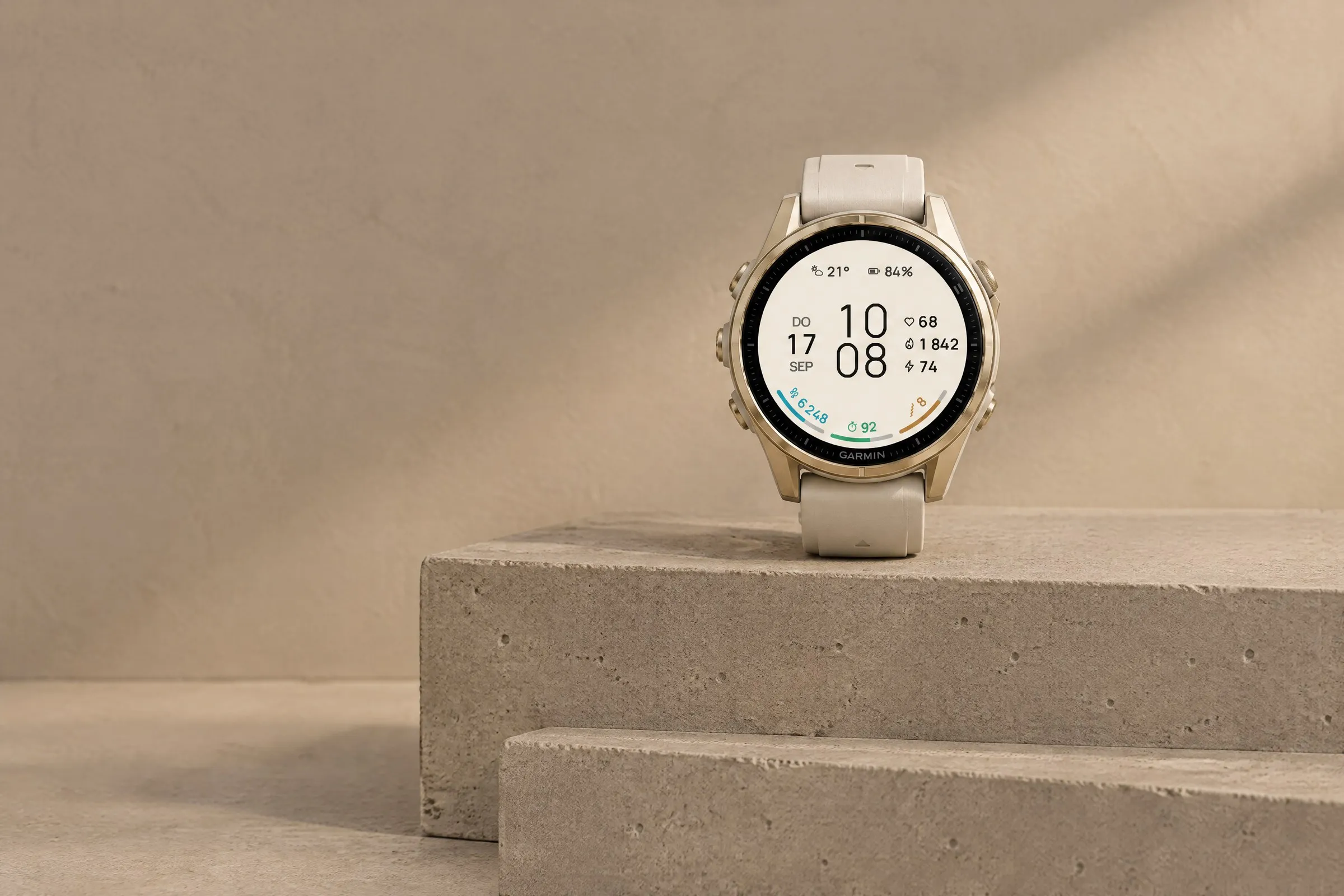
Large digital time with three colorful goal arcs for steps, intensity minutes and Body Battery. Light or dark.
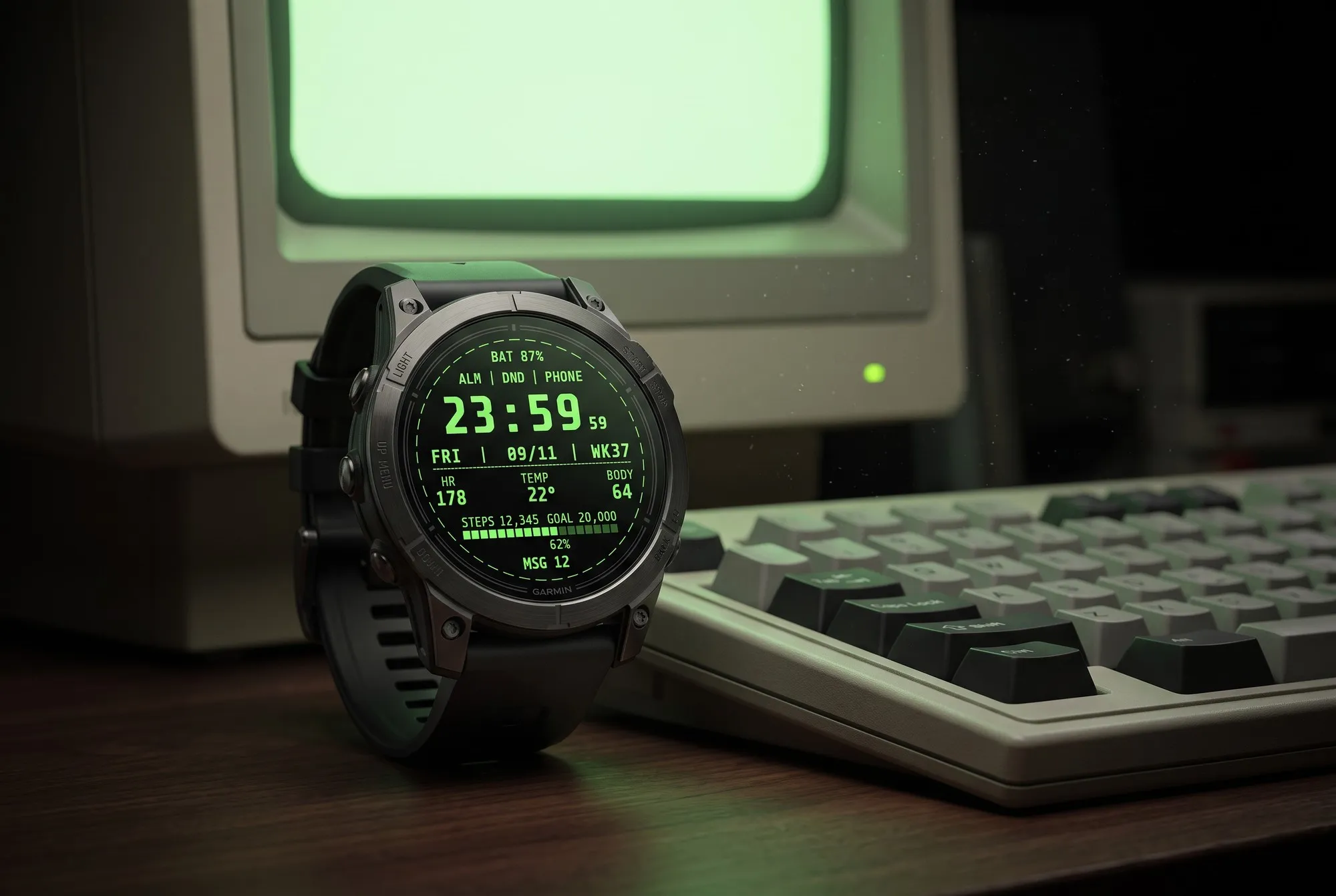
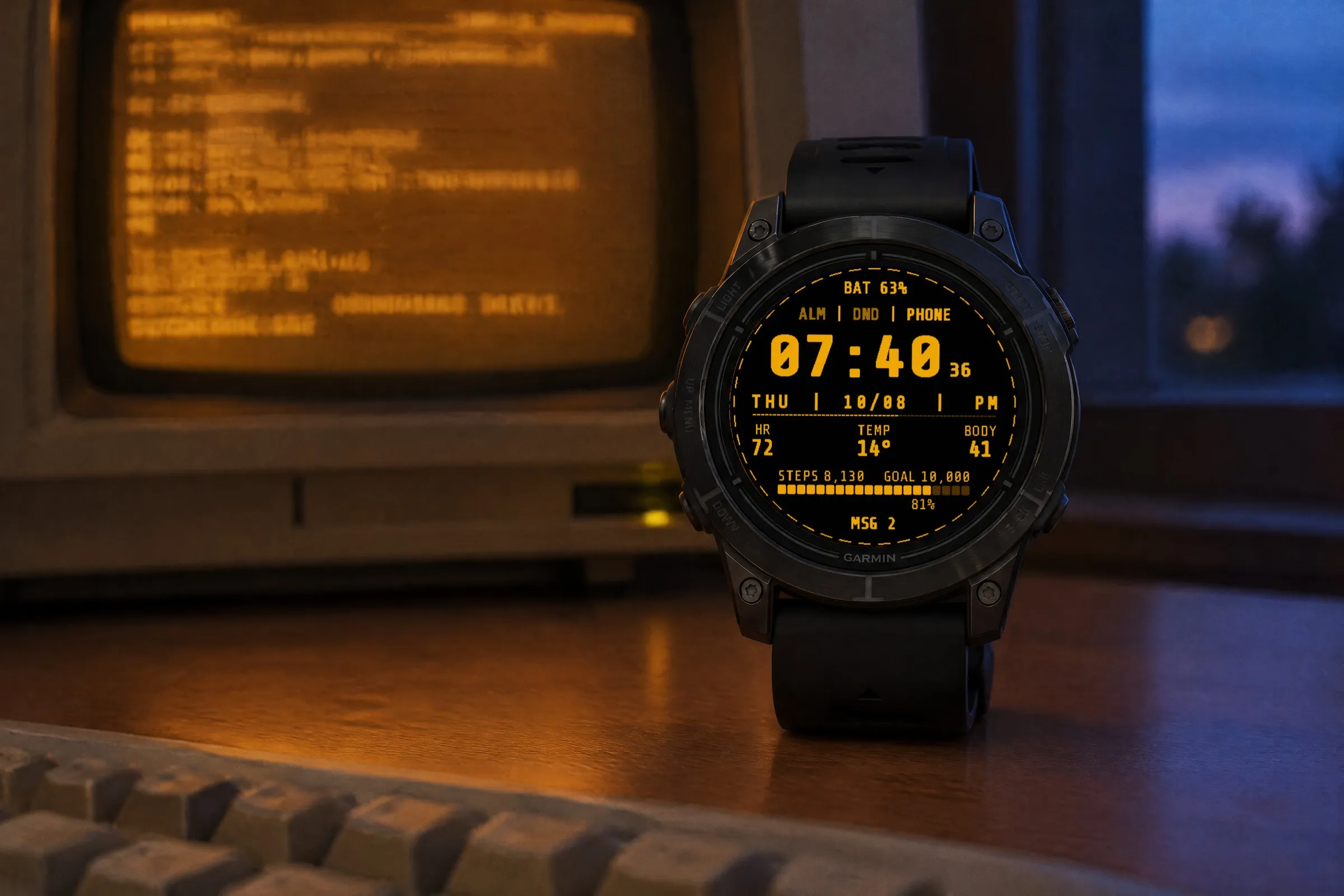
Styled like an old computer terminal: bold monospace digits, seconds that blink like a cursor, all your data in clean lines. A retro digital Garmin watch face in green, amber or paper white.
 AI-generated
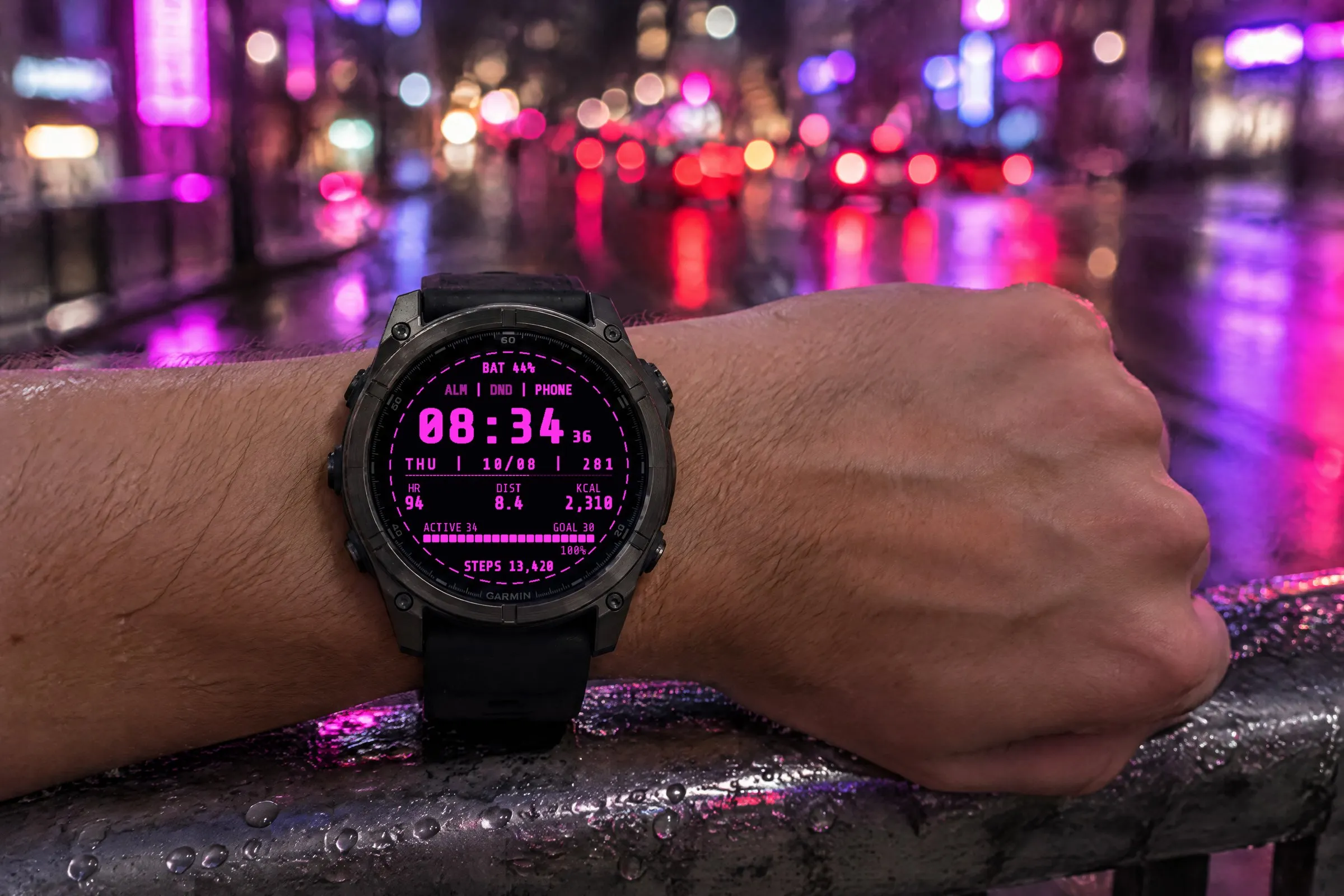
Terminal is a retro digital Garmin watch face styled like an old computer terminal. The time appears in bold monospace digits, with your data running underneath in clean lines: date and week number, heart rate, temperature, Body Battery and a bar for your steps. The seconds blink like a cursor waiting for the next command.
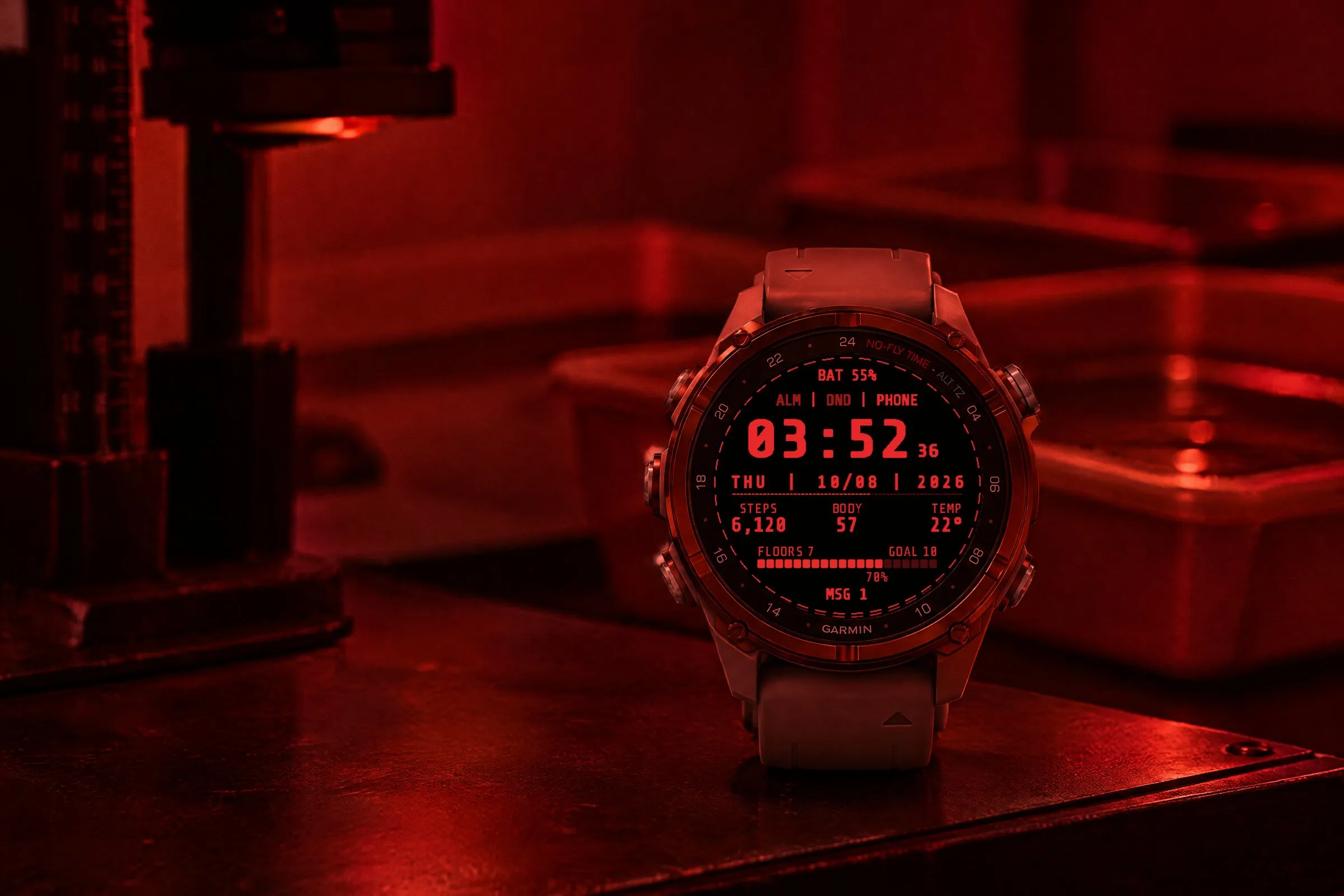
The three base colors come from the phosphors of old monitors: green, amber and paper white, each on black. Short labels like HR, STEPS and TEMP read just as they would on a real console. If you want a different color, the Custom version gives you 256 to choose from.
What you see on the display and what each element shows.
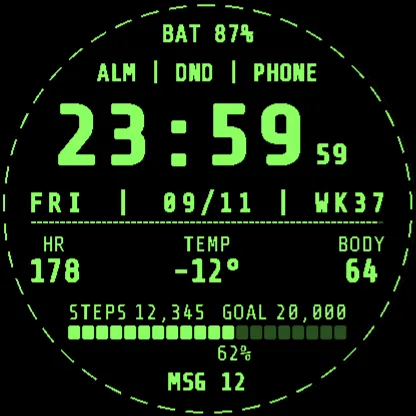
Battery
Battery level in percent at the very top.
Status line
Alarm, Do Not Disturb, phone connection.
Time
Large monospace digits.
Date line
Weekday, date and week number.
Seconds
Blink like a cursor.
Three values
Heart rate, temperature, Body Battery. Customizable in Custom.
Goal bar
Steps toward your daily goal, in percent.
Messages
Number of unread notifications.
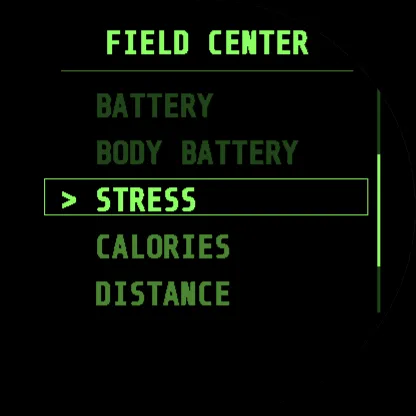
In the Custom version you set twelve zones individually: the number fields at the top, in three columns and at the bottom, three slots for status indicators, the three parts of the date line and the goal bar. The number fields take values like steps, heart rate, temperature, Body Battery, stress or calories. The status slots show things like your alarm, Do Not Disturb or the phone connection. The segmented bar fills toward your goal for steps, floors or intensity minutes; for intensity minutes, your weekly goal is converted into a daily target. Free has a fixed layout with battery, status, date, heart rate, temperature, Body Battery and steps.
 AI-generated
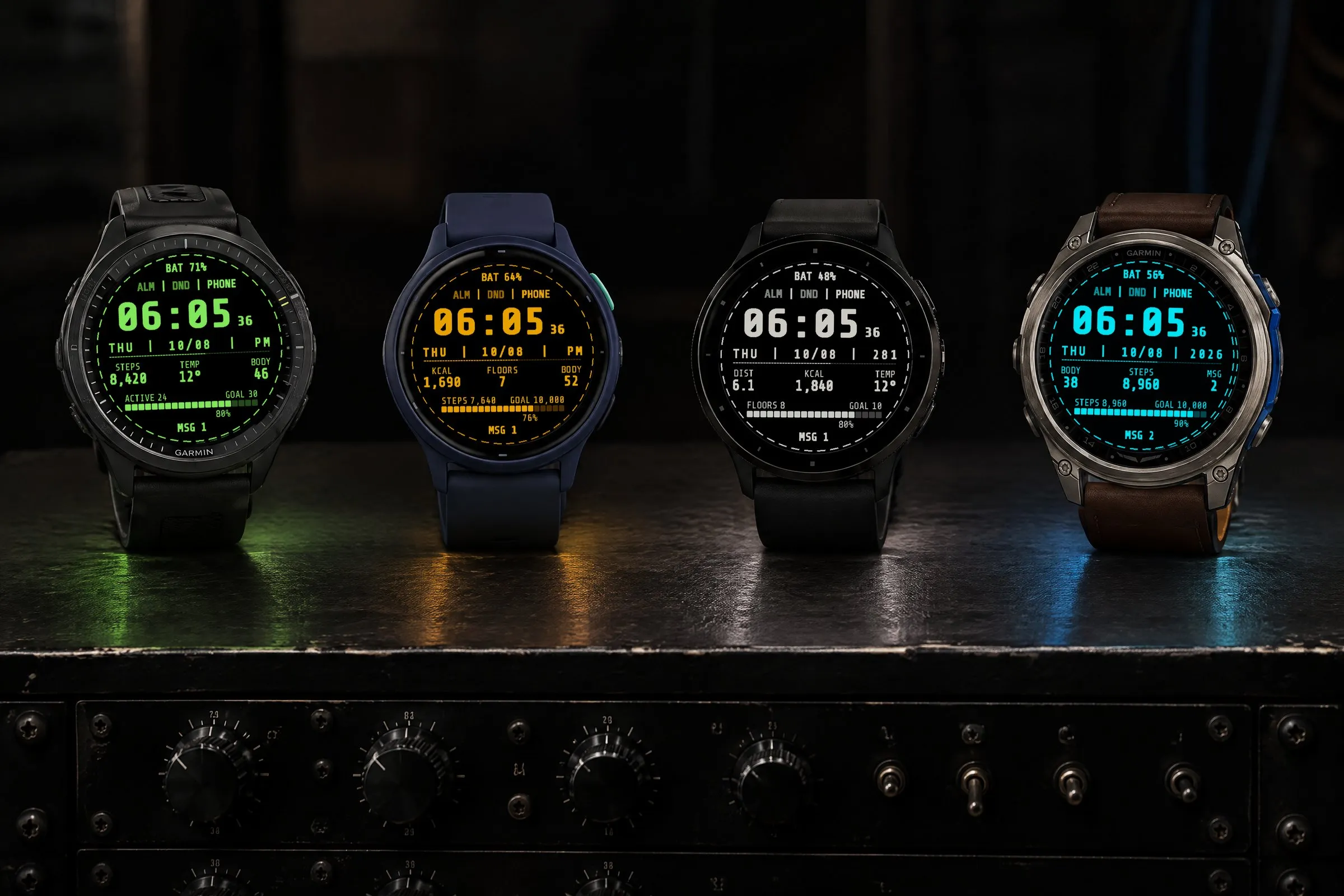
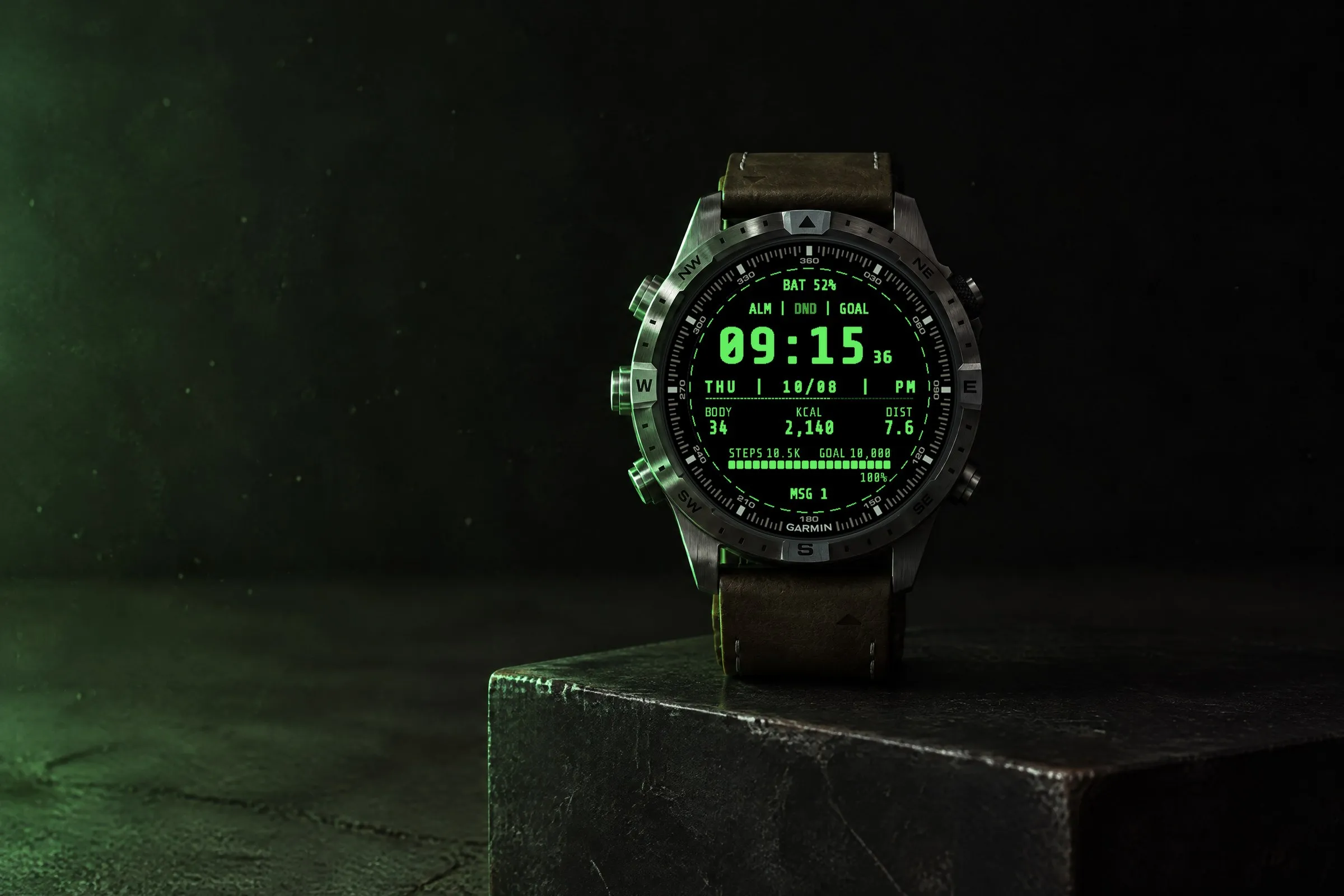
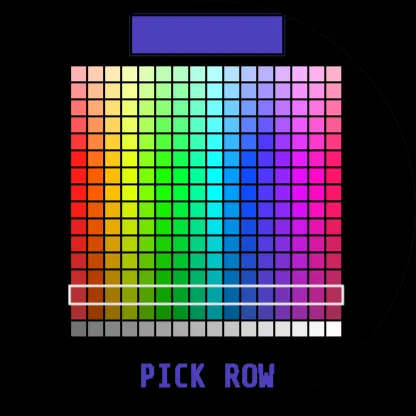
Free comes with the three classic terminal colors: green, amber and paper white. The Custom version adds a 256-color palette: pick a row, then a color, and see the result right away as a preview on the watch. The photo above shows four watches in green, amber, paper white and cyan, a color from the Custom palette.
 AI-generated
 AI-generated
 AI-generated
 AI-generated
 AI-generated
 AI-generated
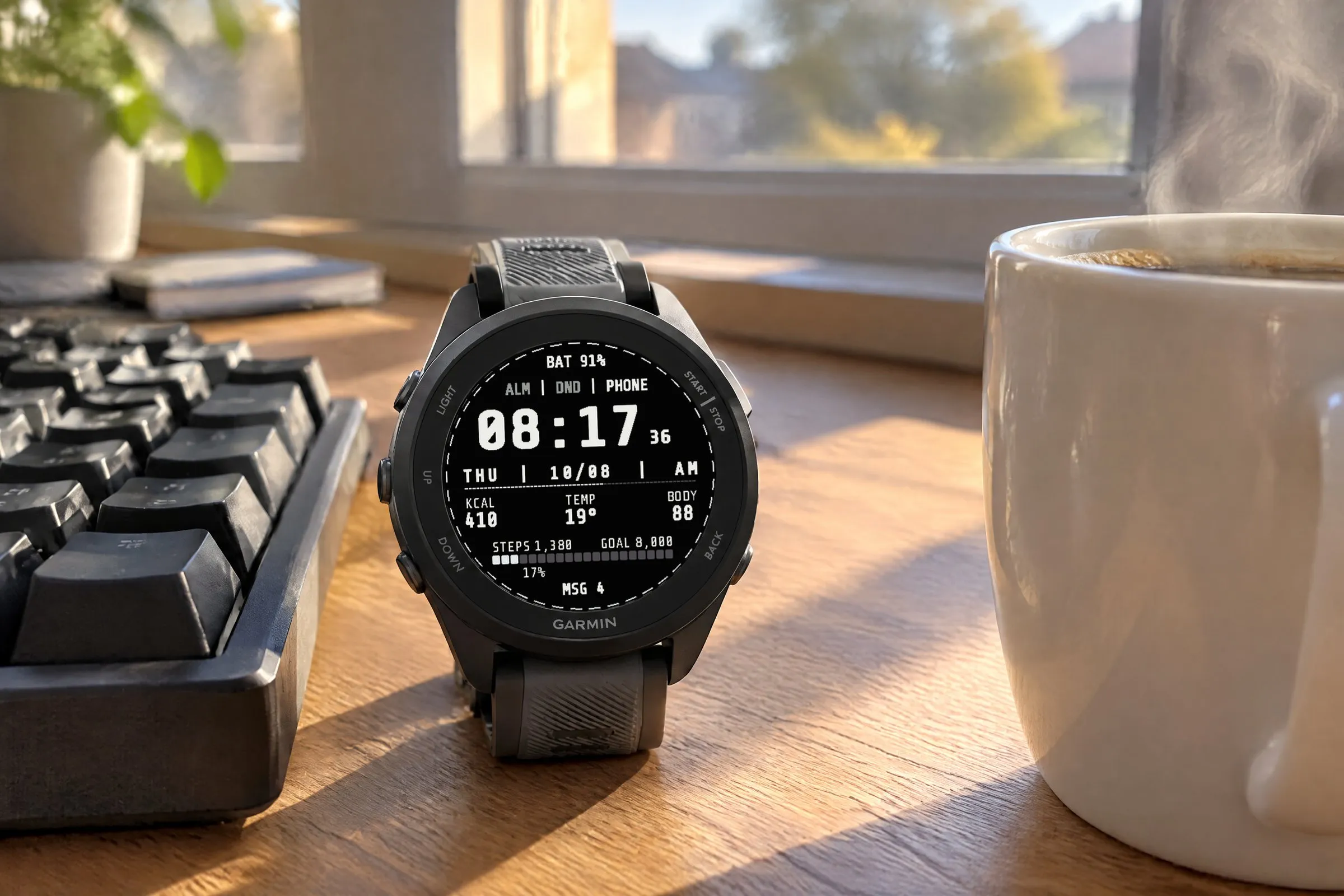
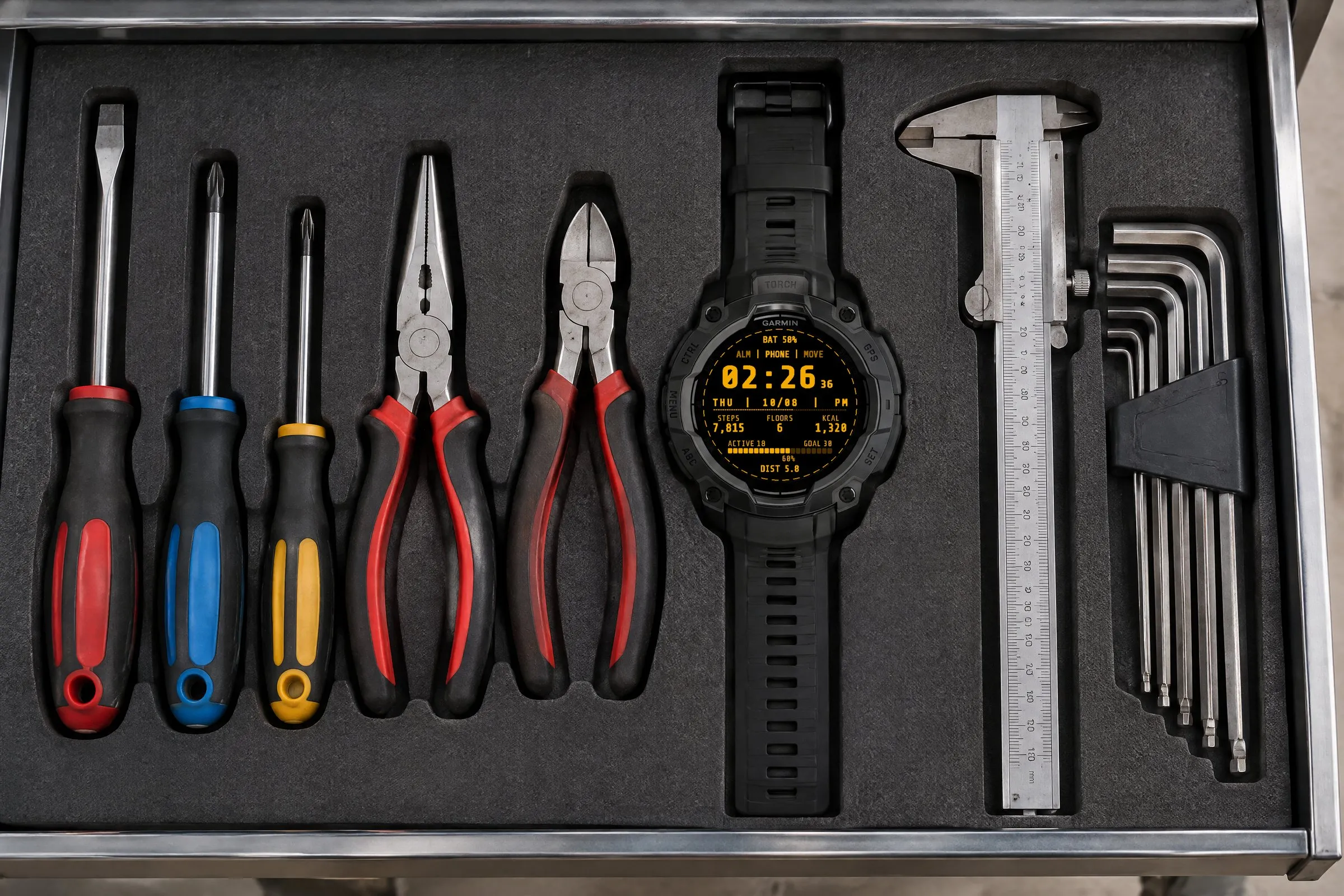
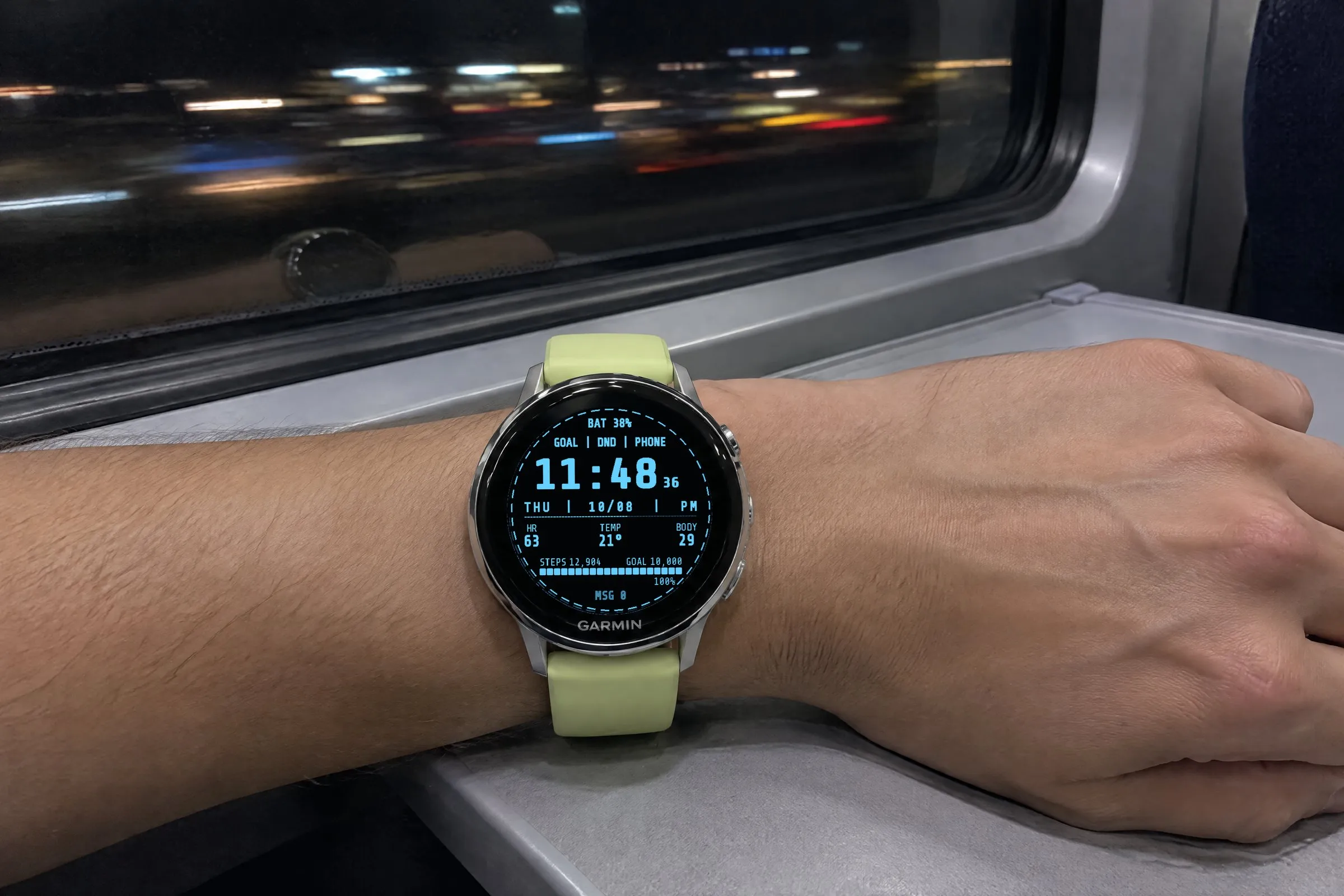
Terminal works at the desk, in the workshop and on long nights. These photos show the retro Garmin watch face on six Garmin watches: MARQ, Forerunner 570, Instinct 3 AMOLED, Venu 4, fēnix 8 and Descent Mk3. Three use the base colors green, paper white and amber, three use colors from the Custom palette: ice blue, neon pink and signal red.
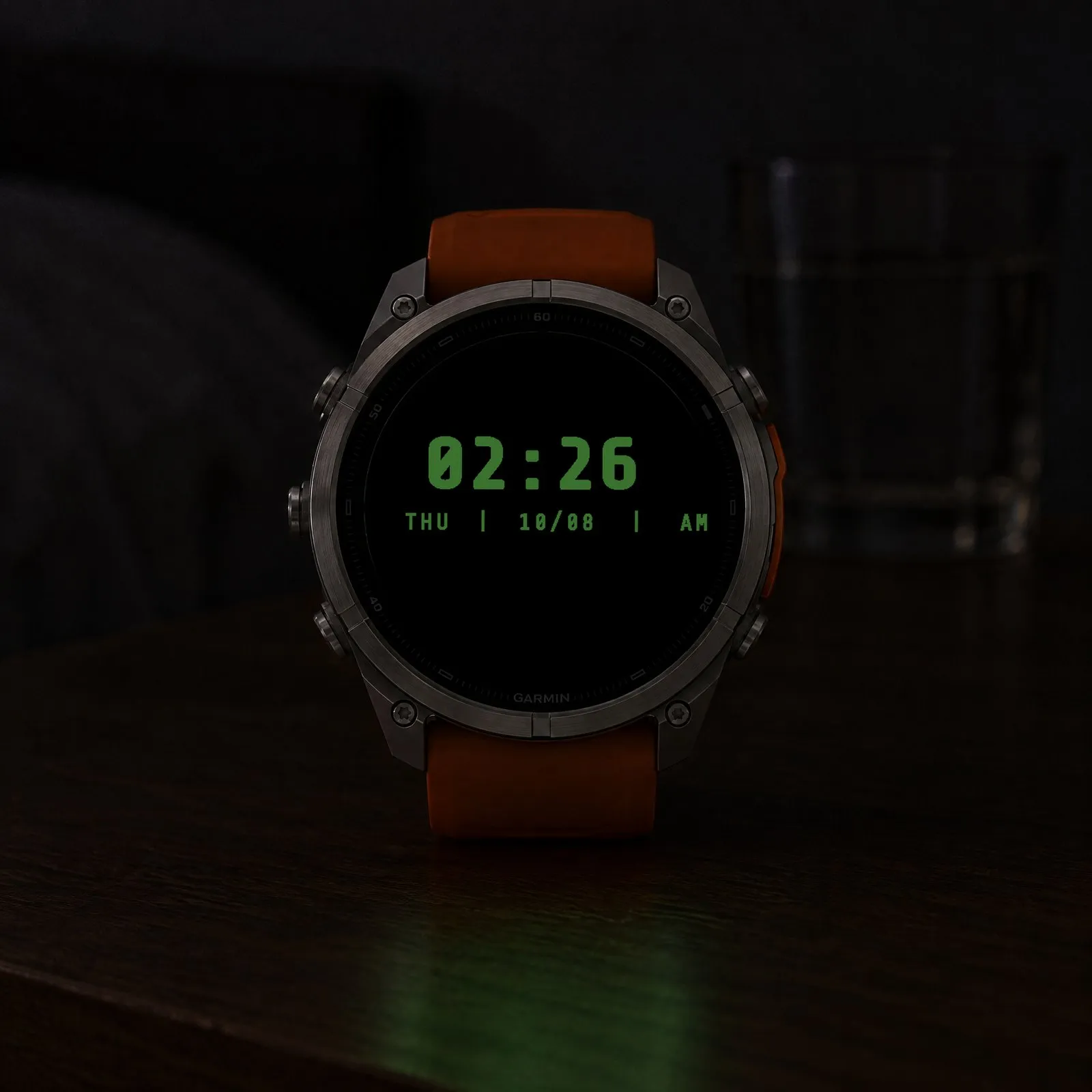
Always-on shows the large time and date line at half brightness. Both shift 16 pixels to a different corner every minute.
 AI-generated
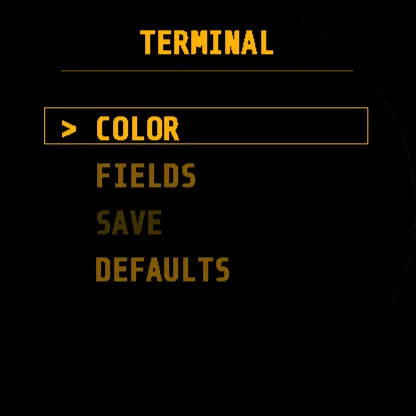
On the watch face, hold the middle left button (UP/MENU), choose “Watch Face” and then “Customize”. Every change shows up instantly in the preview. On Venu, vívoactive and other two-button watches, hold the lower right button instead.
Color
Green, amber, paper white or a free color.
Free colorPro
A 256-color palette (16 × 16): pick a row, then a color.
FieldsPro
Set twelve zones individually: numbers, status, date and goal bar.
Save
Saves your settings after a confirmation.
Defaults
Back to the default settings.
| Feature | FreeNo time limit | Pro$1.99 one-time |
|---|---|---|
| Design | ||
| Monospace digits, seconds blink like a cursor | Included | Included |
| Reduced always-on view | Included | Included |
| No ads | Included | Included |
| Colors | ||
| Green, amber or paper white | Included | Included |
| Any color from a 256-color palette | Not included | Included |
| Data | ||
| Customize the zones | Not included | All 12 |
| Heart rate, temperature, Body Battery, battery, steps, notifications | Included | Included |
| Stress, calories, distance, floors | Not included | Included |
| Status icons | Alarm, Do Not Disturb, phone | 7 to choose from |
| Date line | Weekday, date, week number | Plus year and day of year |
| Goal bar | Steps | Steps, floors or intensity minutes |
| Settings | ||
| 12/24 hours and units follow your watch | Included | Included |
| Menu in six languages | Included | Included |
The watch face runs on these Garmin watches:
Open the Connect IQ Store app on your phone. If you don’t have it yet, get it free from the App Store or Google Play and sign in with your Garmin account.
Tap the search bar at the very top and type Terminal. Open “Retro Digital Free – Terminal” (free) or “Retro Digital Custom – Terminal” ($1.99 one-time).
Free: tap the big blue “Install” button. Pro: buy it first and pay with your Garmin account, then tap “Install”. Your watch gets the watch face the next time it syncs with Garmin Connect.
On your Garmin watch, hold the middle left button (UP/MENU) while the watch face is showing. Select “Watch Face”. Scroll to Terminal: with the left up and down buttons or by swiping the screen. Confirm with the top right button (START) or a tap. On Venu, vívoactive and other two-button watches, hold the lower right button, select “Watch Face”, swipe to Terminal and tap it.
Terminal runs on more than 60 Garmin watches with a round AMOLED or MicroLED display, from these series: fēnix, epix, Forerunner, Venu, vívoactive, Instinct (3 AMOLED), quatix, tactix, D2, MARQ (Gen 2), Descent and Approach. You will find every model under “Does it fit your Garmin?” above, with a filter by series. Watches with a MIP display are not supported.
Terminal Free costs nothing and has no time limit and no ads: three colors (green, amber, paper white), a fixed layout with battery, status, date, heart rate, temperature, Body Battery and steps, blinking seconds and a reduced always-on view. The Custom version, “Retro Digital Custom – Terminal”, adds a 256-color palette and twelve customizable zones.
Open the Connect IQ Store app on your phone, tap the search bar at the very top and type Terminal. Open “Retro Digital Free – Terminal” and tap “Install”; for “Retro Digital Custom – Terminal” you buy first, then install. After your watch syncs with Garmin Connect, hold the middle left button (UP/MENU), select “Watch Face” and pick Terminal. The detailed steps are further up this page.
Yes. On the watch face, hold the middle left button (UP/MENU), select “Watch Face” and then “Customize”. Even in Free, you can choose the color right on the watch. In the Custom version you can also set all twelve zones there and store your settings with “Save”. No phone needed.
No. “Retro Digital Custom – Terminal” is a one-time purchase of $1.99, with no subscription and no ads, and installs as a separate watch face. Buying it does not change an existing Free installation.
Minimal
Large digital time with three colorful goal arcs for steps, intensity minutes and Body Battery. Light or dark.
Big Digital
Big, high-contrast time in the center, a gauge on each side and your step count below.
Analog
Brushed-metal finish in five colors, bold hands and two small subdials.
GMT Analog
Two time zones at a glance: a GMT hand on a 24-hour scale, the second time with its place name and a daylight ring for day and night.